But in recent years, digital technology has in part come to our rescue, giving us the tools and capabilities to reduce reliance on human, manual tasks and free us up to focus more on the things we love. And now, AI looks set to change the game forever, in our favour, as long as we use in it the right ways.
To ensure this happens, we must remember the mantra. . As a result, those employees will be happier, more likely to stay in their roles, and able to achieve more each day… without ever worrying that the AI they’ve integrated into their lives will ultimately replace them.
Microsoft 365 Copilot is your perfect AI partner for the workplace. Through its innovative and ground-breaking everyday AI capabilities, it will transform the way your employees create, summarise, analyse and search for information across the board, whenever and wherever they’re working.
Fully integrated into all your favourite Microsoft 365 apps – like Word, Excel, PowerPoint, Outlook, Teams and more – Copilot brings together powerful modelling and intelligence to provide the most capable productivity tool on the planet, right alongside you, all day long.
Unleash creativity by automatically receiving a crafted first draft of documents ready to develop, saving hours of writing, researching and editing time. Unlock productivity by having email chains, meeting notes and other conversations effortlessly summarised, with suggested replies and next steps. And uplevel skills by getting valuable support to enhance key strengths and master new professional capabilities.
Because Copilot is integrated into Microsoft 365, it assumes all your organisation’s critical security, compliance and privacy policies and processes from the moment you start using it. So, there’s no complicated or time-consuming installations or configurations to perform – and the more you use it, the better it supports you.
AI is creating a brighter future of work for everyone. Microsoft 365 Copilot delivers it straight to your door.
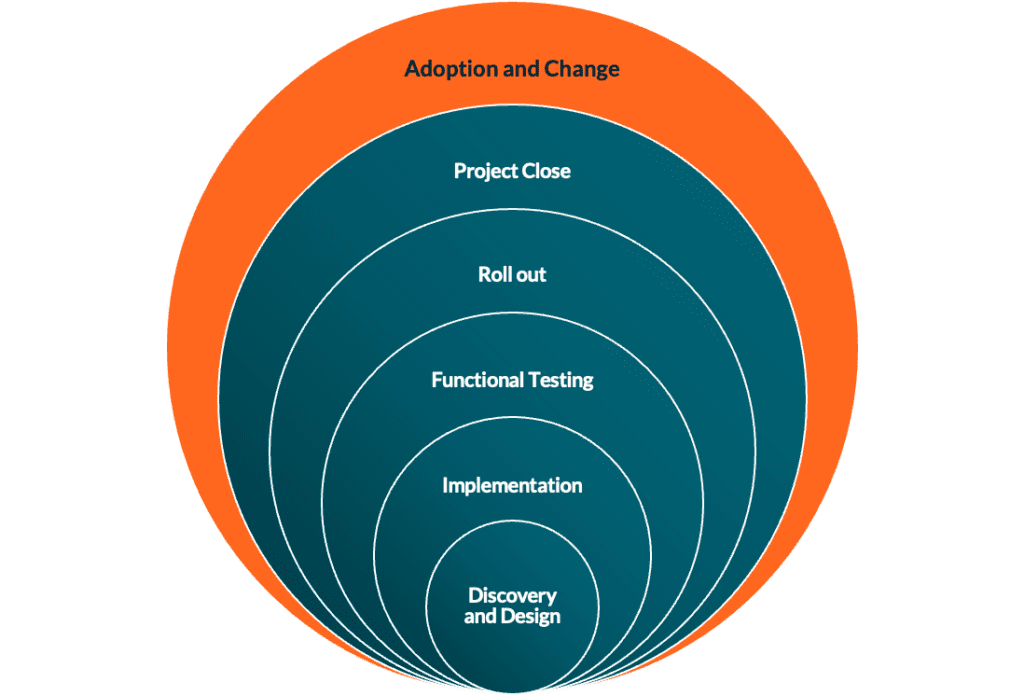
Adoption is one of the outcomes of a successful change management effort. It’s when users successfully transition from whatever tools they were using previously, to using Microsoft Teams.
Successful adoption of new technology requires a change to users’ behaviour. It’s no surprise that not everyone enjoys change; as humans we are all unique and the way we process, move through, and accept change can vary from one individual to another. There is no “one size fits all” when it comes to the way we should approach the introduction of change.
Organisations invest heavily in new technology; technical readiness and user readiness must go hand in hand. Working together to create a solid technical environment that is governed and secure, coupled with fully informed and engaged users, provided with knowledge to inspire confidence that leads users to welcome and utilise the new technology and gain the outcome of benefits realisation.
Absolutely. You’re going to see difference per industry, and on the other end of the scale per department in some cases. Different people have different roles, so they will benefit in varying degrees from any give feature.
This is why defining success measures is so important, you can’t really know for sure if adoption is successful if a) you don’t know what you want users to do differently and b) how you’re going to measure that behaviour. Going back to the original question though, yes, it’s different for everyone.
Change management is the framework, tools and processes used to create a plan of activities that moves people and organisations from the current state to some desired future state. In that sense it sounds a lot like project management, and there are similarities, but change management is focused on people and processes, whereas project management tends to be technology focused.
Adoption is one of the outcomes of a successful change management effort. It should be one of the success measures that you define at the beginning of the change, so yes, you need both.
Adoption & Change Management (ACM) is critical for organisations now that technology is changing at pace. When you introduce the Microsoft Cloud platform you bring a new world of possibilities for users, and a different way of working compared to the traditional IT methods users have been accustomed to for such a long time.
Adoption isn’t an item that you can pick from a shopping list, it’s the most important outcome of any change effort that involves people. it’s almost impossible to see any benefit or ROI if the new tool or process is not adopted.
No, this is unfortunately a common misconception. While training is vital, you also need good sponsorship and effective communications to round out your change management plan.
The best way is to make sure you have a change management plan that covers sponsorship, communications, and learning opportunities. Practically speaking you should make sure you’ve covered the following points in your plan.
At Transparity we believe that adoption is one of the end goals of any project that will impact users. As such, it needs to be baked into every project from the pre-sales and proposal stage. It needs to be there in the Statement of Work and there needs to be an ACM plan just as much as there is a project management plan.
It sounds obvious to say, but without adoption your project has failed in what should be one of it’s key goals. Let’s say you’ve implemented Teams to allow users to call landlines and mobiles directly from the Teams app, but for some reason they are still calling from their personal phones and claiming expenses… this is an example of failed adoption, and for that aspect of Teams it means you’ve wasted that effort and resource.
It’s important to make sure the right people are involved in your change management activities. If any of these people are missing from the plan you increase the risk of poor or failed adoption.
First and foremost, you need a Change Manager. This role is responsible for the planning and coordination of the change management activities that improve adoption.
The most frequently overlooked role is the Executive Sponsor. They communicate the high-level vision that drives the change by showing how the change serves the organisations’ core mission and priority initiatives. Without a sponsor, or with a sponsor that undermines the project, you will struggle to see good adoption.
The Success Owner is a role from the business that is responsible for ensuring that the projects goals are clearly defined (i.e., What does good look like? Wow will we know when we have been successful?), and that these goals are realized from the change.
IT needs to provide someone for the Program/Project Manager role. They oversee the technical aspects of the project like planning and rollout. Most projects already have this role in place, so you just need to make sure they are aware of and support the change management elements of the project.
Champions are a valuable aid to help evangelize the change. They support skill building and provide feedback and usage insights to the project.
The Training Lead may be from IT or elsewhere in the business, typically whoever owns the provision of IT Training in the organisation. They manage, communicate and in smaller companies may also deliver training content to support the change.
Finally, the Communication Lead plays an important role in supporting the Change Manager by integrating the change communications into the company-wide communications programme.
Department Leads can be valuable stakeholders who support the project by identifying how their departments will use new tools, encouraging engagement with learning opportunities, and reinforcing communications. They also support the champions by ensuring that they have the time needed to participate fully in the champions programme.
Community Managers are useful in supporting any communities you set up to support the change. We typically recommend that a Yammer community is set up to support Champions as a minimum, although broader communities can be very useful. Community managers monitor their communities to ensure questions are answered and can also provide guidance on best practice.
Transparity provides the Change Manager role as part of our service. We can also provide some of the functions of the Communications and Training Leads, specifically around creating communications and training plans and delivering training. Where possible we do encourage customers to send communications themselves, so that these are seen to be coming from colleagues inside the organisation.
Recording interactions with colleagues and customers through Microsoft Teams, is a feature of Modern Communications that enables business requirements. This topic in our ‘Teams with -‘ series will cover aspects of recording features (both Microsoft and third-party), transcription, how it can be implemented and managed.
Live transcription is a written record of the spoken text that occurs during a meeting. It identifies each speaker, is captured automatically in near real time, and is available during and after the meeting.
Teams live transcription files are stored in the meeting organizer’s Exchange Online account and only the organizer and tenant admin have permissions to delete it.
Why use transcription
Videos across Microsoft 365 (in SharePoint, OneDrive, Yammer, and Teams) will be considered Stream videos, powered by the SharePoint files platform. And just like other Office file types, Stream videos can be shared with coherent permissions in all Microsoft 365 apps.
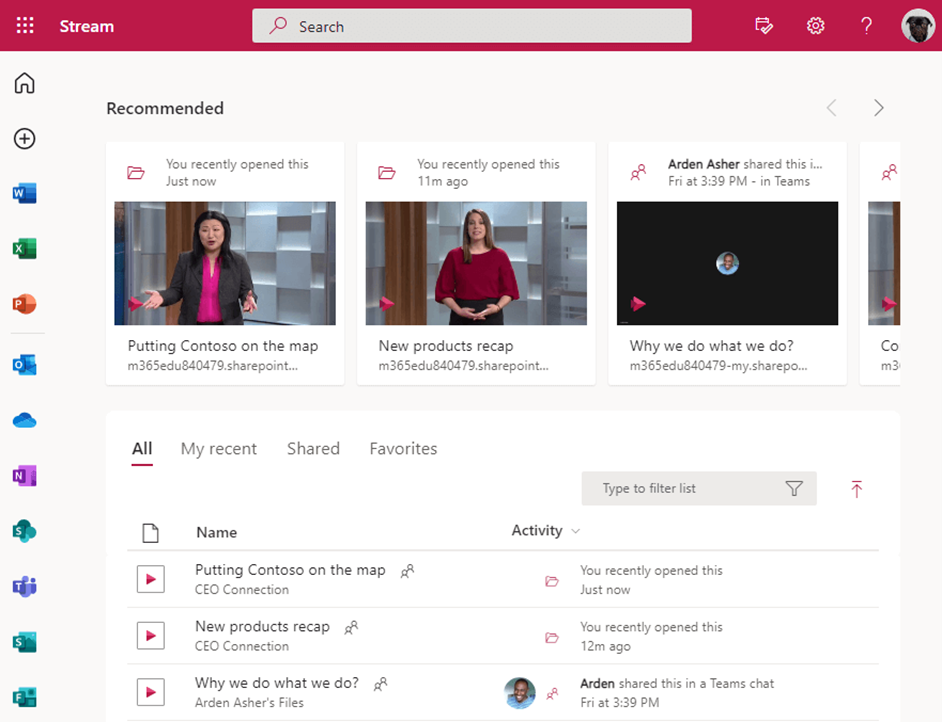
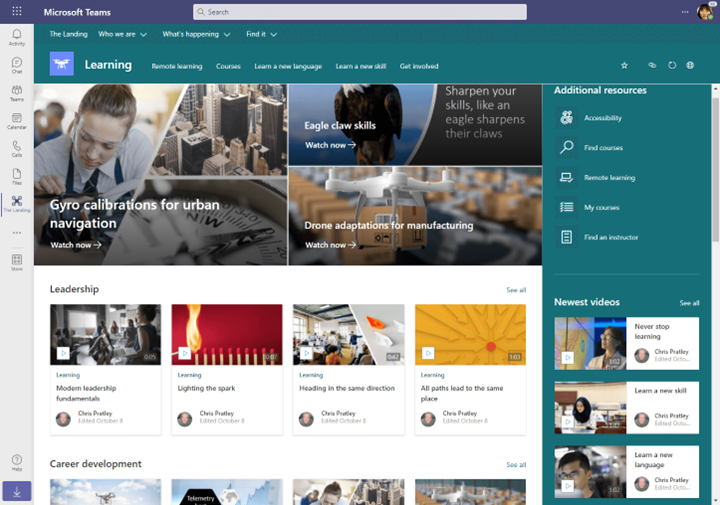
This new vision for Stream does mean that existing content will need to be migrated from Stream (Classic) to Stream (on SharePoint).
Videos in Stream (on SharePoint) will be stored in the same place you store your Office files, in Teams, SharePoint, OneDrive, and Yammer. Videos in Stream (on SharePoint) will consume the existing file storage quota from OneDrive and SharePoint.
Coming soon, Microsoft will be adding a new feature of all license types to automatically expire and delete meeting recordings after a set number of days. See roadmap ID 84580 – Newly created Teams meeting recordings in OneDrive and SharePoint will be automatically deleted by the service based on a default Teams policy setting.
Stream (Classic) still provides better video recording quality but will come to an end in the future (date TBD).
The following features are offered in Stream (Classic), but aren’t currently available in Stream (on SharePoint):
Rolling out now
Under development
Future
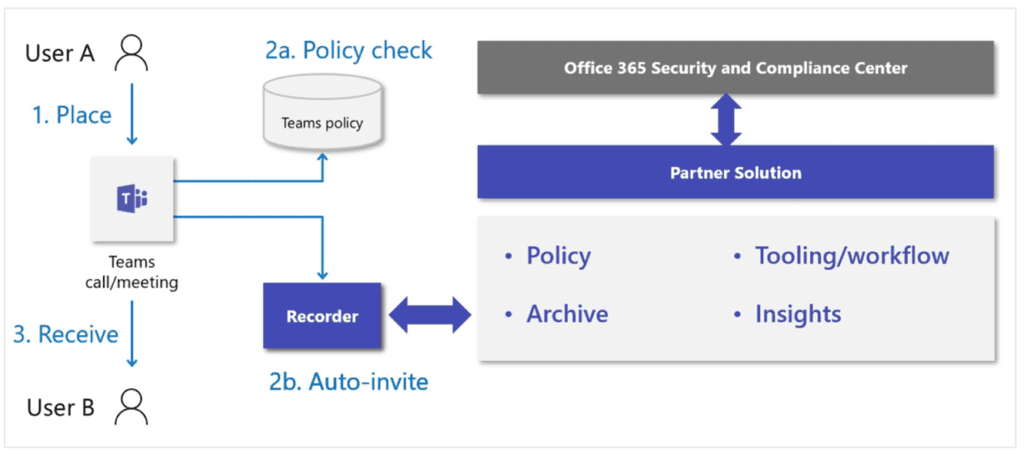
Each user requires:
For channel meetings, the recording will be stored in a ‘Recordings’ folder in the ‘Files’ tab for the channel.
The ‘Files’ tab stores all files in a SharePoint site and document library for the channel. Everyone who is a part of the channel will have permission to edit and view the recording.
For non-channel meetings, the recording will be stored in the ‘Recordings’ folder in the OneDrive directory of the person who started the recording.
If you recorded or organized the meeting, you can share the recording with people who weren’t invited to the meeting like you would share any other file. You can download the recording to watch offline, depending on your company policy.
Set-CsTeamsMeetingPolicy -Identity Global -ChannelRecordingDownload Block
Allow (default)—Saves channel meeting recordings to a ‘Recordings’ folder in the channel. The permissions on the recording files will be based off the Channel SharePoint Online permissions. This is the same as any other file uploaded for the channel.
Block—Saves channel meeting recordings to a ‘Recordings/View only’ folder in the channel. Channel owners will have full rights on the recordings in this folder, but channel members will have read access without ability to download.
Compliance is a large topic for Microsoft Teams. We’ll cover this topic in further blogs and events so keep an eye out or head to our events page. So, what happens when we want to have a compliance-based recording solution for your modern communications (calling, chat, video, etc.)?
Requirements could be:
Then you need a partner solution.
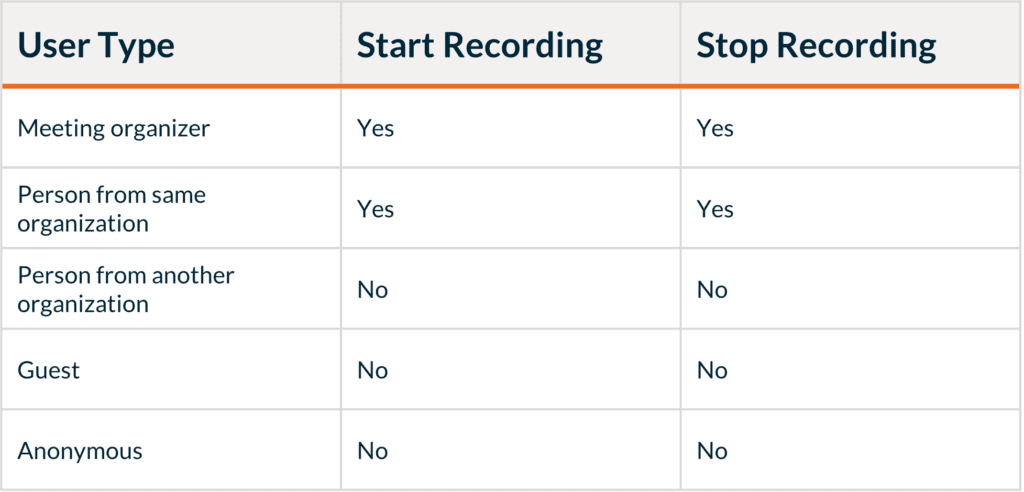
The are many partner solutions available and accredited by Microsoft.
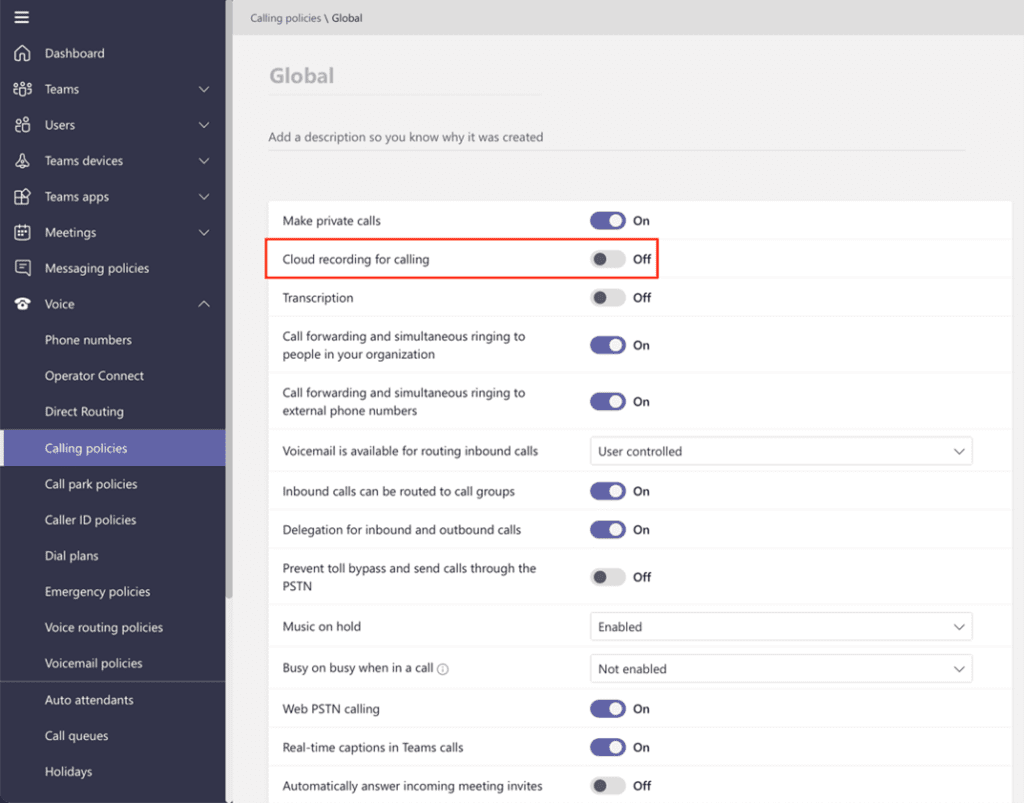
The policy to allow recordings can be found in the TAC.
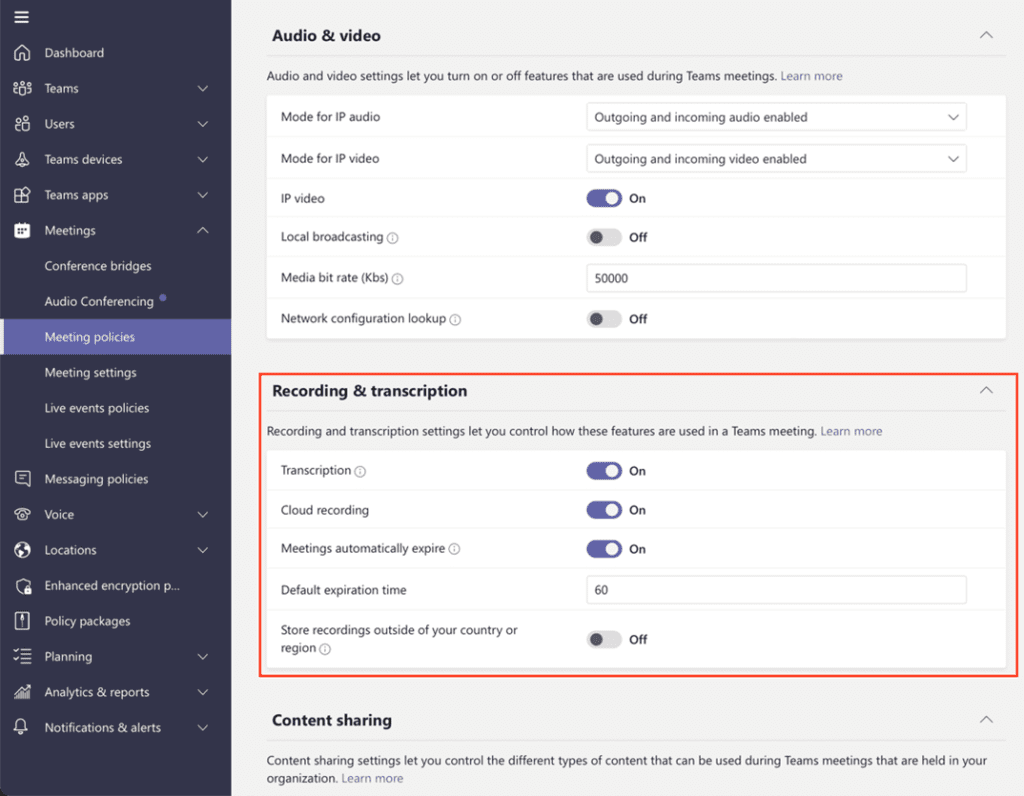
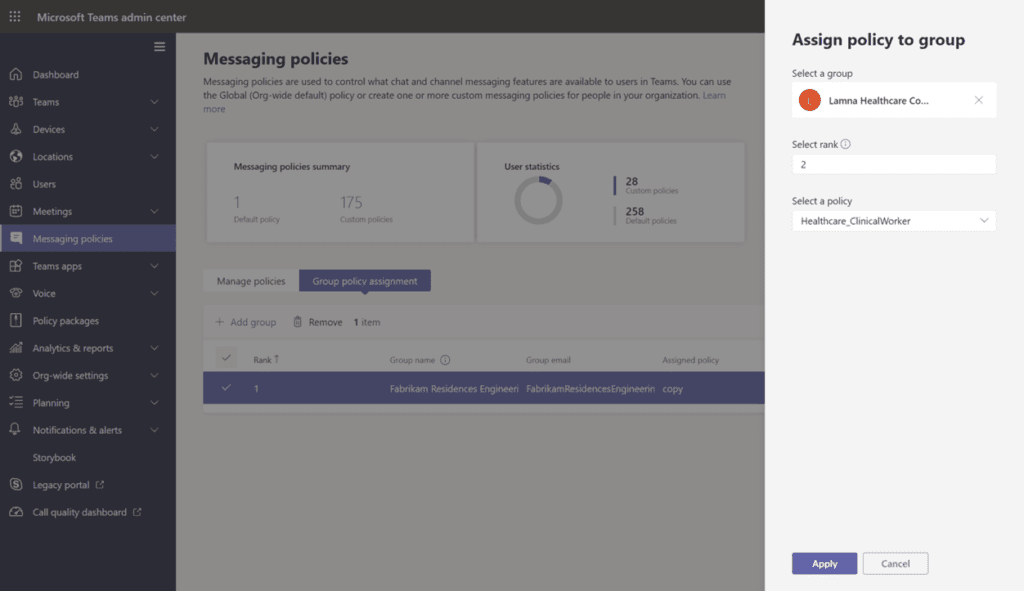
To easily manage policies in your organization, Teams offers several ways to assign policies to users. Assign a policy directly to users, either individually or at scale through a batch assignment, or to a group that the users are members of. You can also use policy packages to assign a preset collection of policies to users in your organization who have similar roles. The option that you choose depends on the number of policies that you’re managing and the number of users you’re assigning policies to.
A user has one effective policy for each policy type. It’s possible, or even likely, that a user is directly assigned a policy and is also a member of one or more groups that’s assigned a policy of the same type. In these kinds of scenarios, which policy takes precedence?
When assigning a policy to a group, the ranking value can be set at this point. Note: If you don’t specify a ranking, the policy assignment is given the lowest ranking
Both the meeting organizer and recorder must have one of the following licenses: Office 365 Enterprise E1, E3, E5, F3, A1, A3, A5, M365 Business, Business Premium, or Business Essentials.
The recording will be available after the meeting was scheduled to end (so not necessarily when it actually ends).
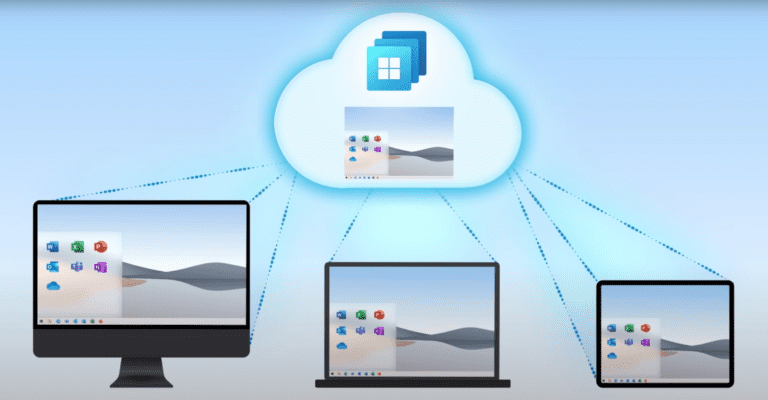
Last month, Microsoft announced Windows 365; a new Cloud service aiming to deliver a full PC experience that can be streamed from any device, anywhere, any time. The release has caught many off guard, with the service already launching into General Availability at the start of this month. It’s a promising proposition and will hopefully provide flexibility to both organisations and users at a scale that was impossible for most before. But what can we expect from the latest flagship offering?
Well firstly, we now have a simple mechanism of providing a consistent and persistent virtual desktop experience to our users, which helps to truly realise the aims of hybrid working. In short, we can provide a full Windows experience to our users across any device they want to use and for most, this will be the first time we can truly allow them access to everything. This includes internal company resources and applications by enforcing the correct security and compliance policies.
For administrators, we’re again reducing the management overhead and complexity of providing a virtual desktop experience. There were huge gains to be had in this space when switching from traditional on-premises VDI platforms to Azure (Windows) Virtual Desktop, but Windows 365 takes this even further with greater support for Endpoint Manager than we’ve (easily) had before.
Starting with the most basic of basics, terminology – exactly what is this we’re talking about? Well, Microsoft are using the term ‘Cloud PC’; a new type of virtual machine created for our end users when they’re assigned a suitable Windows 365 licence. This Cloud PC is specific to the user, so there is no sharing of the resource like we had with multi-session VMs in Azure Virtual Desktop, and no underlying capacity or load balancing to manage underneath; it’s a specific PC for a specific user that we can expect to evolve and change over time, just as a physical device would.
Pricing is where we see more change from traditional models of the past. Whilst Azure Virtual Desktop allowed us a few options (such as reserving our resources and fixing the cost or spinning down or reducing capacity during quiet hours and being flexible), these usually required some upfront guesswork or long-term reviews to get right. Windows 365 is committed to offering us a simple fixed cost, rather than a moving target.
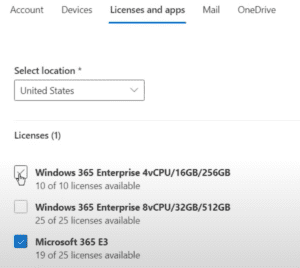
Even at launch there are a range of specifications available – and these, of course, will come with varying levels of cost – but knowing that each is a fixed cost will be a huge win for many. To simplify how this is managed, we assign a Windows 365 license in the exact same way we would any other Microsoft 365 bundle or service – straight from the user portal of Azure AD or M365. That’s it!
Windows 365 is launching with bespoke administrator roles that will allow us to continue to follow best practice of least-privileged access, which is not often something we often see when a service first launches. Within the service itself, we will often want to start with something of a baseline and we have the option of using readymade marketplace images alongside the ability to upload our own.
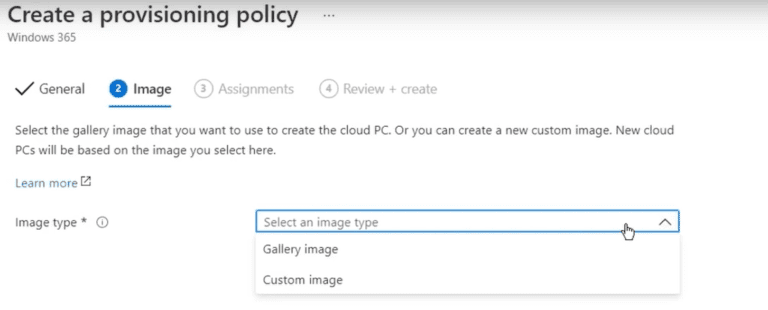
Of course, the flexibility we can then offer our users to make changes within the Cloud PC itself will be up to us, just as it would do on any other Endpoint Manager-controlled device. This means we can restrict or encourage customisation of the virtual machine, from personalising the desktop background all the way to installing new applications just as a user may already on a physical PC.
As we’ve alluded to already, users may want to access this service from any device, and that’s absolutely something we can safely encourage. Microsoft have built the service following the well-known Zero Trust model and, of course, fully supporting Conditional Access policies. If we don’t want to offer the initial flexibility of launching the service from unknown devices this can easily be achieved, but most will use this support to enforce standard policies like Multi-Factor Authentication (MFA).
Once logged in, users can launch into the service using familiar capability from Azure Virtual Desktop; both web and client experiences are available, depending on preference. They’ll be able to pick up exactly where they last left the VM, so moving between devices will be an absolute breeze with speed the name of the game. Initially, we see client support for Windows, MacOS, iOS and Android, but these will be joined in the supported list by Linux very soon.
We’ve mentioned support for Endpoint Manager already and it’s a huge influence in how we manage a Cloud PC throughout its lifecycle. We have dedicated configuration to set networking, such as how we want our new virtual machine to interact with an existing on-premises network or even its relationship status to Active Directory, with full support for hybrid join too.
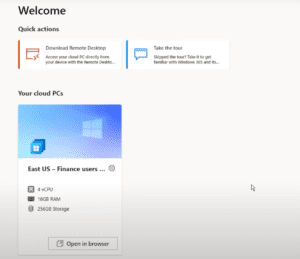
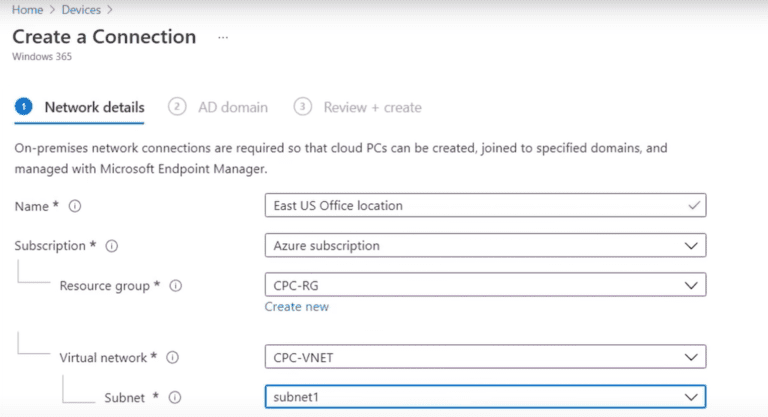
Once our new Cloud PCs are running, we manage them just as we would a physical device, straight from Endpoint Manager and the deprovisioning process is just as easy – remove the users license and the VM will promptly be shut down and removed after a short grace period.
In short, Windows 365 is absolutely one to watch, offering functionality which will make a huge difference to those who will be continuing to work remotely or move to hybrid working.
Want to find out more about this exciting new technology? Transparity are holding a brand-new event virtual event as an introduction to Windows 365 on 9th September; just click here to register!
Many think of Microsoft Teams as a platform to host meetings and calls, but there’s so much more to this application than meets the eye. Particularly now when remote and hybrid working have become so prominent in our society, collaborative platforms and communication “in the moment” have been widely needed and depended on.
Microsoft have brought us a number of new collaboration features over the last a few years; for example, co-authoring of documents, sharing links to files instead of the files themselves and persistent chat. I rarely used these features when they were first released and with some, not even for the first few years! Now I use them every day. Microsoft Teams and Microsoft 365 bring them directly to you; it feels natural that they are part of my day and I don’t even realise I’m using them until I’ve looked back.
In this blog, I’ll be outlining below some key features (both existing and coming soon) that can help you and your organisation boost collaboration when using Microsoft Teams.
A fantastic new feature that Microsoft have been working on is the eagerly-anticipated Teams Connect. Due for release in November this year, this new addition will enable you to share channels with anyone, whether they’re internal or external to your organisation. The premise is to provide a better-connected and collaborative environment for easy chatting, meetings, content sharing and the ability to co-author documents in real-time within that same shared channel.
Remote working has been widely accepted by many during the pandemic and as Microsoft have stated, hybrid working is here to stay for the future as well. With this in mind, having an online space where it’s seamless to partake in conversation, share files and apps whilst collaborating with either internal or external participants is the next step in modern-day hybrid working.
Setting up your Teams platform can be done quickly and effectively using Microsoft Teams templates to help you build a collaborative and inclusive space for your team. There are a variety of templates to choose from and customise, making it a speedy process to set up.
The templates provide a standardised structure with pre-defined channels, tabs, apps etc., giving you an effective environment straightaway with no waiting time to build a design from scratch. After you’re through the creation stage, you’ll receive guidance on how best you can use the functionalities and what customisation may work best for your unique needs.
Are you tired of scrolling through a conversation thread, trying to find a file that was once shared with you? Well, Microsoft has just the solution for you! Teams’ SharePoint integration means you can upload files directly into a conversation, which will then immediately become available within the Files tab of that channel.
No more hunting around for files or documents; instead, you can easily find the documents you’re after by organising your channels for better access and more productive working.
Long gone are the days of sending documents back and forth, waiting on amendments from different people. Within Microsoft Teams, multiple people can work on the same documents, spreadsheets and PowerPoint at the same time without interruption or lag between responses.
Additionally, if these documents are stored in your Teams channel, the files will be accessible to all members of that team, allowing everyone to collaborate and co-author simultaneously.
Being designed to create and manage collaborative working with the help of channels and chats, Microsoft Teams is built to enhance users experience when working online together. There are many options for setting and configuring permissions within Teams, so if you want to have more or less structure to your environment, it’s entirely up to you.
Governance of this environment is important when creating a platform for users; however, as I mentioned previously, Teams Templates can help control certain aspects of this through customisation of channels with apps and files. You can build your templates in order to maintain a standardised structure throughout, making it easier for your users to adopt and maintain.
Teams can also be set up to give control of Teams creation to specific people. This can help ensure users are adhering to any governance policies and procedures and not creating excessive amounts of Teams channels.
Finally, keep an eye out for the new fluid components (currently in private preview). Fluid components in Teams chat allow end users to send a message with a table, action items, or a list that can be co-authored and edited by everyone in line and that is shareable across Office applications like Outlook. Align across teams by copy and pasting components across Teams chats. These aligned chats stay up to date. Fluid components in Teams meetings allows co-create an agenda, take notes, and assign tasks, within the Teams meeting.
To learn more about how to best utilise Microsoft Teams, get in touch for a complimentary consultation. Our Microsoft Teams expert will guide you through how to make your environment as collaborative and effective as possible.