



Considering recent research bringing to light a security risk within Azure Functions storage accounts with key-based access, in this blog post, we will explore how to configure Azure Functions with managed identity for storage access, before disabling key-based access entirely.
Azure Functions is a serverless compute service that allows you to run code on-demand without worrying about infrastructure management. It provides a flexible way to build and deploy event-driven applications and microservices. One of the key features of Azure Functions is its integration with other Azure services, such as Azure Storage.
When creating an Azure Functions App, a dedicated storage account is also created, the Functions App relies on the storage for various operations such as trigger management and logging. By default, this account is created with “Allow storage account key access” enabled. An access key derived connection string is added to the Function App configuration, in the AppWebJobStorage application setting. A common practice is to move the connection string to Azure Key Vault and configure the Function App to fetch the connection string secret on startup.
SECURITY RISK FOUND IN AZURE FUNCTION STORAGE ACCOUNTS KEY-BASED ACCESS
Recent research by Orca Security, a cloud security company, discovered that attackers who have obtained the access key could gain full access to the storage account and business assets. Moreover, the attackers could move laterally within the environment and even execute remote code.
Although Microsoft has already recognised the risks associated with shared key access and recommends disabling it, the default setting for storage accounts still enables this authorisation method. Microsoft recommends that, where possible, key-based access to storage accounts should be disabled and advises using Azure Active Directory authentication for enhanced security and reduced operational overhead.
AZURE FUNCTIONS WITH MANAGED IDENTITY FOR STORAGE ACCESS
Based on a real example encountered in a recent project, here we are going to explore an HTTP triggered Function as an initial example, looking at how to secure the Functions access to its own storage account. Next, we look at a Function triggered by a queue in a different storage account and how to secure the interactions between those two resources.
CONSIDER A SIMPLE FUNCTION APP WITH AN HTTP TRIGGER
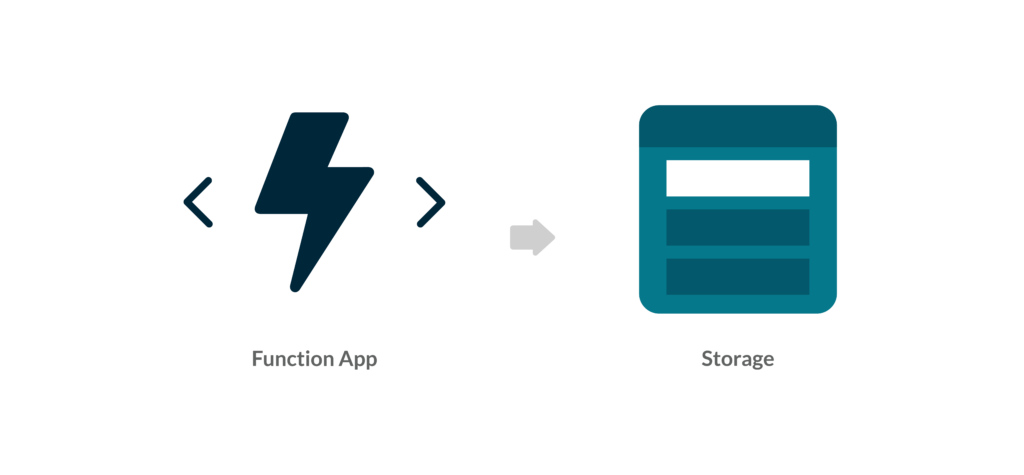
The Function App is backed by an Azure storage account. If we visit the Azure Portal and take a look at the Configuration screen, we can see an application setting called AzureWebJobStorage which stores the connection string for the Function App Storage.
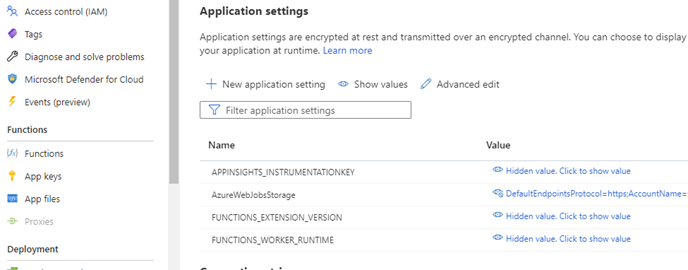
Rather than using a connection string, we can switch to an identity-based connection by performing the following steps:
STEP 1: ENABLE MANAGED IDENTITY FOR AZURE FUNCTION APP
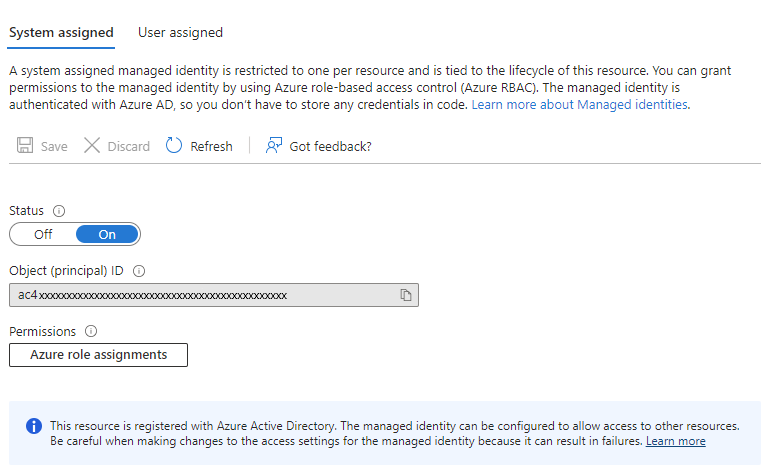
Navigate to the Function App Identity screen in the Azure portal and select “System assigned” for the managed identity option. Click save. This will create a managed identity for the Function App in Azure Active Directory.
STEP 2: GRANT ACCESS TO AZURE STORAGE
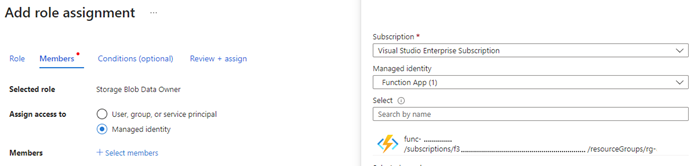
The next step is to grant access to Azure Storage for the managed identity created in the previous step. To do this, go to the storage account’s Access Control (IAM) screen in the Azure portal, and add a role assignment for the Function App’s managed identity with the role of “Storage Blob Data Owner”.
STEP 3: CONFIGURE THE FUNCTION APP SETTINGS
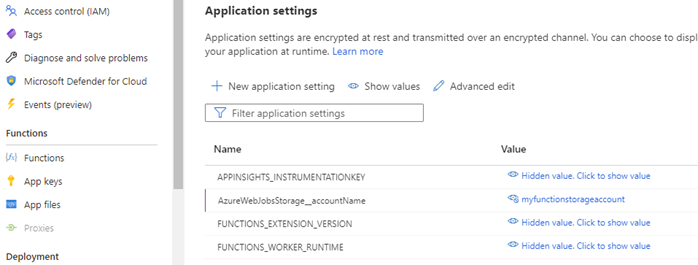
The Function App now needs to have its setting modified to instruct it to use managed identity when accessing its storage account. Open the Function App Configuration screen in the Azure Portal. Rename the AzureWebJobsStorage variable name to AzureWebJobsStorage__accountName (with 2 underscores). This convention ensures the function uses managed identity to access the storage account. Next, we change the value of this variable to the name of the storage account that was created with the function. Save changes.
STEP 4: DISABLE ACCOUNT KEY ACCESS TO STORAGE
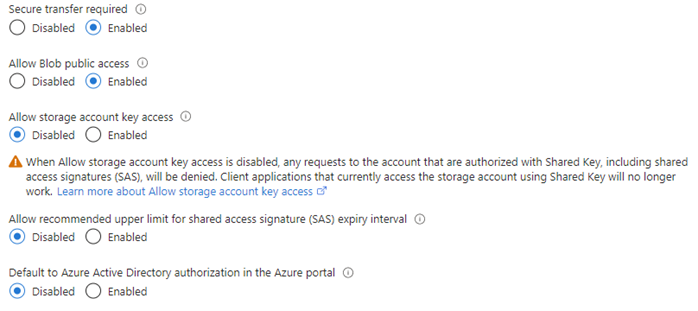
At this point the Function App will use its managed identity to access its storage, so we can safely disable account key access*. In the Azure Portal open the Configuration screen for the Function App storage account. Toggle the “Allow storage account key access” setting to disabled and save changes.
CONSIDER A FUNCTION APP WITH A STORAGE TRIGGER
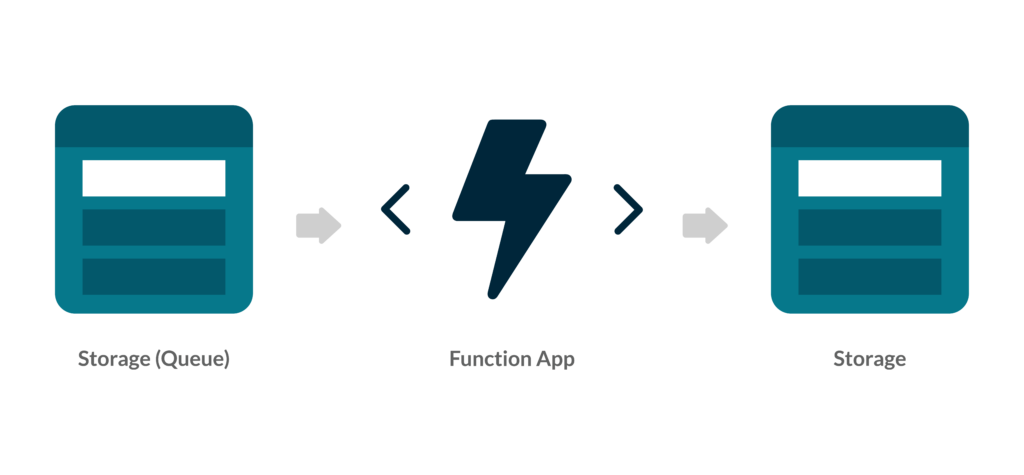 Beyond HTTP Functions can be triggered in many ways. In this example, we have a Function that is triggered by a new message on an Azure Storage Queue. The Function App needs to be configured to have access to the Storage Queue. The following steps will describe how to achieve this with managed identity.
Important: Requires Microsoft.Azure.Functions.Worker.Extensions.Storage V5 or later
STEP 1: ENABLE MANAGED IDENTITY FOR AZURE FUNCTION APP
If not already complete we need to enable managed identity for the Function App as described above.
STEP 2: GRANT PERMISSION TO THE FUNCTION APP IDENTITY IN THE STORAGE ACCOUNT
The Function App identity must be granted permission to perform its queue actions. In this example, the Function reads a message from a queue, processes it, and removes it from the queue. For this, we’ll give it the “Storage Queue Data Message Processor” and “Storage Queue Data Reader” roles.
Navigate to the queue storage account’s Access control (IAM) screen in the Azure portal and add role assignments for the Function App’s identity with the roles of “Storage Queue Data Message Processor” and “Storage Queue Data Reader”. The role requirements will vary by scenario, so we need to ensure we have assigned the correct role(s) for our needs.
STEP 3: CONFIGURE APPLICATION SETTINGS
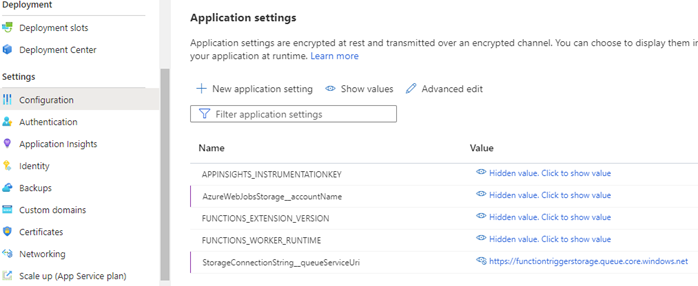
If this is an existing Function App with a queue trigger, it will already have queue connection settings. For example, it might have a connection string application setting with the name StorageConnectionString and a value that contains the connection string or a reference to the Azure Key Vault secret containing the connection string. In the below example, we have an environment variable that contains the connection string to a storage queue.

In the Configuration screen for the Function App, the application settings need to be configured with the following convention: The setting name should be in for the format {connectionName}__queueServiceUri (2 underscores). The value should be the Uri of the queue service.
STEP 4: DISABLE ACCOUNT KEY ACCESS TO STORAGE
Now that the Function App uses its managed identity to access the queue storage which will trigger it, we can safely disable account key access*. In the Azure Portal open the Configuration screen for the queue storage account. Toggle the “Allow storage account key access” setting to disabled and save changes.
CONCLUSION
Configuring Azure Functions with managed identity for storage access is a simple and secure way to access Azure Storage resources without storing credentials or secrets in code or configuration files. By using managed identity, we can avoid the complexities of managing and rotating credentials and improve our application’s security. With the above steps, we can easily configure our Azure Functions to use managed identity for accessing Azure Storage.
Note: If any other services have been setup to use this storage account via a key-based mechanism, they will also need to be configured to use managed identity before disabling the account key access.
If you are looking for Azure experts or or help with your app development, be it consultancy or outsourcing, do get in touch and find out how we can be of help.
REFERENCES